How to Control China LED Displays via WiFi or Cloud?

Time:2026-09-29 Author:Ethan
0%

How to control an LED display via Wi-Fi or Cloud? This question matters for schools, retail stores, stadiums, and outdoor advertising sites. A modern LED display can receive content without a laptop beside the screen. Operators can upload images, schedule videos, adjust brightness, and monitor playback from a web dashboard. The process looks simple. The setup is not always simple.

AV consultant Alan Brawn offers a useful principle: “A display succeeds when the message is seen, understood, and acted upon.” That idea applies directly to cloud-controlled LED systems. A stable network connection supports smooth updates. A reliable control platform reduces unnecessary site visits. Proper user permissions also prevent accidental changes. These details matter when a screen is three floors above the control room.

This guide explains the practical steps behind Wi-Fi and cloud control. It covers sending content, configuring access, checking device status, and handling common connection failures. You will also see where wired connections may outperform Wi-Fi. Signal strength can change near concrete walls, metal cabinets, and crowded public networks. Cloud control can save time, but it cannot repair poor installation work. That is an easy point to miss.

A careful operator should test the display before publishing important content. Check colors, timing, brightness, and playback behavior. Keep backup access available. Small mistakes become visible quickly. The following sections focus on dependable methods, realistic limitations, and safer daily operation for LED display management.
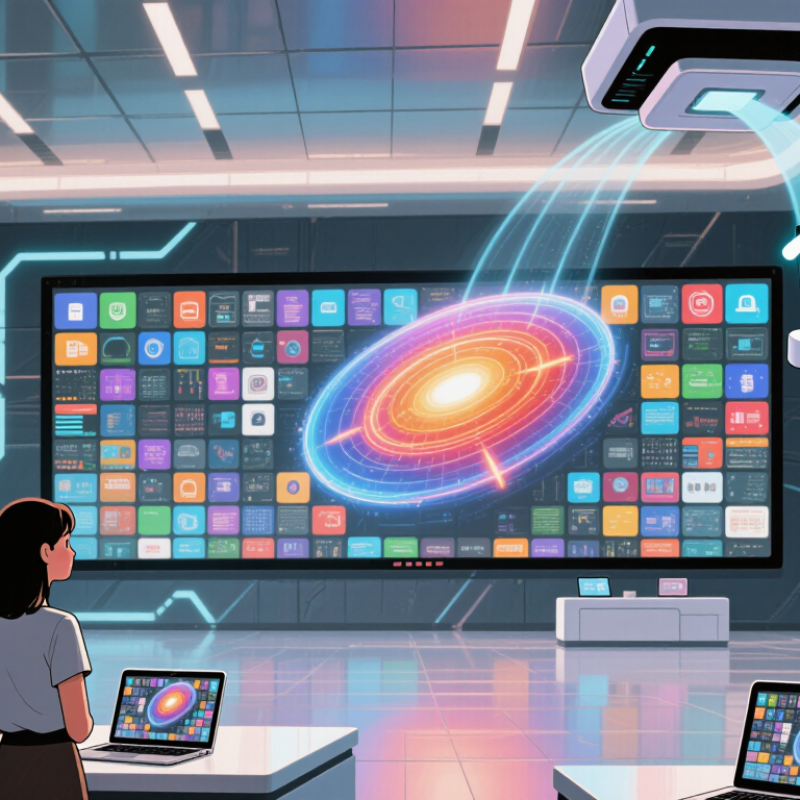
How to Control China LED Displays via WiFi or Cloud?

What WiFi and Cloud Control Mean for China LED Displays

For China LED displays, WiFi control means sending content over a local wireless network.

A technician can update a shop screen from a laptop or phone, without connecting a cable to the display. The trade-off is range: thick walls, crowded networks, or a poorly placed router can interrupt uploads. WiFi is convenient, but it is not magic.

Cloud control adds remote access through an internet-connected platform.

An operator can schedule different content for several locations, check device status, and make changes without visiting each screen. This is useful for retail chains and venues with displays in separate cities.

It also depends on stable internet, account security, and clear access permissions. If the connection drops, locally stored content may continue playing, but remote changes will wait.

Market context helps explain the growing interest.

Grand View Research estimated the global LED display market at about USD 7.25 billion in 2023, with expected growth through 2030. That report measures the display market, not WiFi or cloud adoption, so it should not be treated as proof that every screen needs remote management.

In practice, match the control method to the site: test signal strength at the display, confirm offline playback, and check whether staff can recover access. One detail is often overlooked: a simple setup can be more reliable than a feature-rich one.

Choosing the Right Control System for Your LED Display

Choosing the Right Control System for Your LED Display

A WiFi or cloud control system should match how the display is used, not just how new it sounds. For a screen in a shop window, WiFi may be enough. An operator can update a menu from a nearby laptop, then check the display from the floor. It is simple. But walls and other wireless devices can weaken the signal, so test the connection at the actual installation site.

Cloud control is useful when several displays need coordinated updates across different locations. A manager can schedule content remotely and review whether each screen received it. This saves travel time. It also depends on a stable internet connection and careful account management. If the network drops, confirm whether the display can keep playing its stored content.

Before choosing, check screen resolution, supported file types, scheduling needs, and who will manage access. Ask the supplier to demonstrate a real update, including what happens when WiFi is interrupted. A short test with the intended video or image can reveal delays that a feature list will not. I have seen teams focus on remote access and overlook the daily workflow. That is an easy mistake. The best system is the one staff can operate reliably, even on a busy day.

Connecting the Display to a WiFi Network

Connecting a China LED display to WiFi starts with the display’s control system, not the screen panels themselves. Check the controller manual for supported network bands and setup steps. Many systems use 2.4 GHz WiFi, while some support other options. Confirm before changing router settings. A small detail, but an easy one to miss.

Place the display within reliable router range, then open its network settings using the controller’s approved app or built-in menu. Select the correct network and enter the password carefully. A nearby phone may show full signal while the controller struggles behind a metal cabinet or wall. Test the connection from the controller, not just from your phone. If the setup page offers an IP address option, use automatic assignment unless your network administrator has provided fixed settings. Avoid sharing WiFi passwords in screenshots or public support messages.

Once connected, send a small test image or message and check that it appears correctly across the full display. Watch for delays, missing sections, or repeated disconnections. These symptoms can point to weak signal, network congestion, or incorrect controller settings; they do not always mean the display is faulty. I have found that “connected” can be misleading. Keep the router and controller software updated, and use a separate network where practical. For outdoor installations, test again with the cabinet closed, since the final position may affect signal strength.

How to Control China LED Displays via WiFi or Cloud? — Connecting the Display to a WiFi Network

Step Task What to Do Expected Result Practical Notes
1 Check the display controller Confirm that the LED display’s control system has built-in WiFi or a compatible wireless adapter, and check which WiFi bands and security modes it supports. The controller is ready for wireless setup. Supported bands and security options vary by controller. Check its documentation before configuring the router.
2 Prepare the WiFi network Make sure the network has a stable signal at the controller location. Have the correct network name (SSID) and password available. The controller can detect the intended network. A separate 2.4 GHz network may be needed if the controller does not support 5 GHz. Avoid guest networks that block communication between devices.
3 Open the controller’s setup interface Use the controller’s approved setup method, such as its configuration software, local access point, or built-in web interface. The network configuration page or settings are accessible. Keep a wired connection available during initial setup if practical, so the display can still be reached if WiFi settings need correction.
4 Enter WiFi credentials Select the correct SSID, enter the password, and save the settings. Use a supported security mode, such as WPA2-Personal, where available. The controller attempts to join the WiFi network. Enter the password exactly as configured, including capitalization. Do not use an open network for routine operation.
5 Confirm network access Check the controller’s connection status and assigned IP address in its interface or on the router’s connected-device list. The controller shows as connected and has a valid address on the local network. DHCP is usually the simplest option. If a static IP is required, use an address that does not conflict with other devices and matches the network’s subnet.
6 Test local control Send a small test change or content update from a device on the same network, then verify that it appears on the display. The display responds to commands over the local WiFi network. If the test fails, check signal strength, IP settings, device isolation, and whether the computer or phone is on the same network.
7 Enable cloud access if needed Follow the controller or software provider’s documented enrollment process and confirm that the network allows the required internet access. The display appears online in the authorized cloud management interface. Cloud requirements differ. Confirm required destinations and ports with the relevant documentation; avoid exposing the controller directly to the public internet.
8 Secure and maintain the connection Use a strong WiFi password, restrict access to authorized users, and periodically check connectivity and controller status. The display remains accessible to authorized operators. Record network settings securely. If credentials change, update the controller before expecting it to reconnect.

Configuring Cloud-Based Display Management

Cloud-based management turns a China LED display into a remotely updated communication tool. The process starts with a stable network connection and a compatible control card. Connect the display controller to WiFi, then record its device ID, screen resolution, and physical location. Small details matter.

Open the cloud management portal from a secure computer. Create a separate user account for each operator, rather than sharing one password. Add the display using its device ID, select the correct time zone, and upload a short test image. Check brightness, aspect ratio, text spacing, and playback timing on the actual screen. A preview can look correct while the display shows cropped content. It happens.

Use scheduled playlists for announcements, prices, or public information. Set different brightness levels for daylight and evening hours, but verify local safety requirements before deployment. Keep files lightweight when the network is unstable. Large videos may remain queued for several minutes. Enable login protection, update controller software when necessary, and limit administrative permissions. Cloud access is convenient, but it creates another security responsibility. Review access logs monthly and remove inactive users promptly.

A backup connection can prevent unexpected black screens. However, relying on automatic recovery without testing is a weak plan. Disconnect the primary network during a quiet period and confirm whether scheduled content continues. Document the final settings, cable layout, and reset procedure. Future technicians will need them. Perfect configuration is unlikely on the first attempt. Regular checks make the system dependable.

Sending, Scheduling, and Updating LED Screen Content

How to Control China LED Displays via WiFi or Cloud?

Sending content to an LED display is more than uploading a video. A reliable workflow starts with a cloud content management system, a stable media player, and secure WiFi access. Grand View Research estimated the global digital signage market at USD 31.5 billion in 2023, showing how quickly remote content management is expanding. Yet growth does not remove basic risks. Weak signals still interrupt uploads.

Use the cloud dashboard to send images, videos, and text to one screen or an entire display group. Before publishing, check the screen’s resolution, aspect ratio, file format, and playback duration. A 10-second product clip may look sharp on a small panel but pixelated across a large outdoor wall. Test it first. The mistake is easy to miss.

Scheduling makes daily operation more precise. Set breakfast promotions for morning hours, traffic updates for the afternoon, and event content for evening audiences. Time zones and daylight-saving settings need careful checking. The system should also support content versioning, user permissions, delivery logs, and offline playback. Cisco’s Annual Internet Report highlighted the rapid growth of connected devices, but connectivity is never guaranteed. A local backup playlist keeps the screen running when WiFi drops. Cloud control feels simple, but careless scheduling can still publish the wrong message.

LED Content Operations: Average Completion Time by Connection Method

This benchmark uses a 100 MB media package and compares calculated completion times for sending content, scheduling playback, and applying a screen update through a local WiFi connection or a cloud workflow.

WiFi is typically faster for nearby screens with a stable local network, while cloud control is more practical for remote displays, centralized scheduling, and multi-screen content updates.

FAQS

When is WiFi control enough for an LED display?

WiFi often suits a shop window or nearby screen. Staff can update menus from a laptop and check playback from the floor. Keep it simple.

When should I choose cloud management?

Cloud control fits multiple displays in different locations. Managers can schedule updates remotely and check delivery status. It saves travel time.

What can weaken a WiFi connection?

Walls, nearby wireless devices, and distance may weaken the signal. Test at the actual installation site, not only beside the router. That matters.

What should I check before selecting a control system?

Check resolution, file formats, scheduling needs, user permissions, and network stability. Ask for a live update demonstration. Feature lists can mislead.

How do I add a display to a cloud portal?

Connect the controller to WiFi and record its device ID, resolution, and location. Add the display, choose the correct time zone, and upload a test image.

Why can a preview look correct while the screen looks wrong?

The display may crop the image or change text spacing. Check brightness, aspect ratio, and timing on the physical screen. It happens.

How should accounts and permissions be managed?

Give each operator a separate account. Limit administrative permissions and review access logs monthly. Remove inactive users promptly. Shared passwords create confusion.

What happens if the internet fails?

Confirm whether stored content keeps playing when the connection drops. Test a backup connection during a quiet period. Automatic recovery should not be assumed.

How can scheduled content remain reliable?

Use lightweight files when the network is unstable. Store different brightness settings for daylight and evening. Verify local safety requirements before deployment.

What information should technicians document?

Record final settings, cable layout, device location, and reset steps. Future technicians will need clear details. Perfect setup rarely happens immediately.

Conclusion

Managing a China LED display through Wi-Fi or the cloud can make content delivery faster, more flexible, and easier to monitor. The process begins by understanding the difference between local Wi-Fi control and cloud-based management. Wi-Fi is suitable for direct communication within a nearby network, while cloud control allows authorized users to manage one or multiple displays remotely through an internet connection. Selecting the right control system depends on screen size, installation location, network availability, security needs, and the frequency of content updates.

To connect the display, users typically configure the receiving device with the correct Wi-Fi credentials and verify a stable network connection. A cloud platform can then be configured to register the display, organize user access, and monitor device status. After setup, operators can upload images, videos, text, or announcements, create playlists, schedule playback, and update content from a computer or mobile device. Following a clear setup and testing process helps ensure reliable operation and answers the key question: How to control an LED display via Wi-Fi or Cloud?

Ethan

Ethan

Ethan is a seasoned marketing professional with a deep expertise in our company's innovative product line. With a passion for sharing knowledge and insights, he takes the lead in regularly updating our corporate blog, where he explores industry trends, product features, and effective marketing......