Dead pixels on LED panels can be frustrating. They disrupt the visual experience and often result in dissatisfaction. Expert Mark Johnson, a renowned technician in display technology, once said, "Identifying and fixing dead pixels can restore your screen's full potential." This highlights the importance of addressing this issue.
Addressing the question, "How to fix dead pixels on an LED panel?" demands a practical approach. Many users may try various techniques, but not all methods guarantee success. Techniques like pixel massage or using software can be helpful, yet results may vary. Relying solely on these quick fixes can sometimes lead to disappointment.
It is essential to combine different strategies and understand their limitations. While some dead pixels might resolve with gentle pressure, others may require professional repair. A comprehensive understanding of the potential solutions fosters informed decisions, ensuring users do not overlook practical options. Exploring these avenues can lead to a better visual experience and restore the screen's functionality.
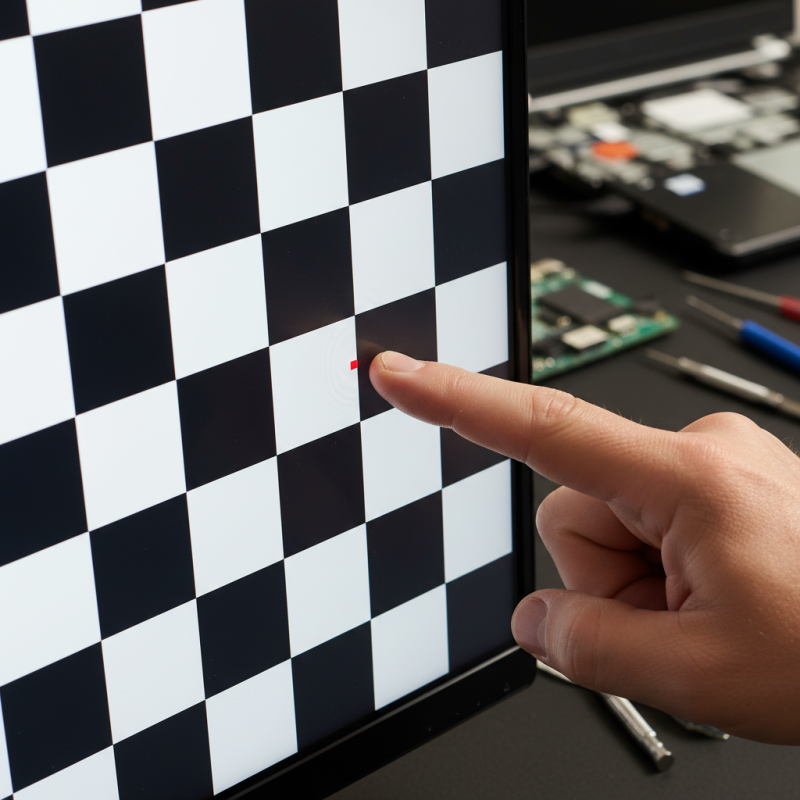
Dead pixels are small points on an LED screen that do not display the correct color or remain black. They can be frustrating, especially when watching videos or playing games. Understanding why dead pixels occur can help users prevent or address them effectively. They often result from manufacturing defects, physical damage, or issues with the display driver.
A dead pixel typically appears as a tiny dot on the screen, which can be stuck in a single color. This problem can arise during the screen’s production phase. Sometimes, even a small bump or pressure can cause a pixel to die. If the display driver malfunctions, it can also lead to dead pixels. The symptoms are usually clear, but identifying the cause can be trickier.
For many users, recognizing the significance of these pixels can lead to informed decisions. While a single dead pixel may not be noticeable during routine use, multiple dead pixels can detract from the viewing experience. Users might feel tempted to fix the issue themselves without professional help. However, attempting repairs could risk further damage. Being aware of these risks is essential for anyone dealing with dead pixels.
| Dimension | Details |
|---|---|
| Definition | Dead pixels are pixels on a display that do not illuminate properly, appearing as black dots or stuck pixels in a fixed color. |
| Causes | Common causes include physical damage, manufacturing defects, and electrical issues. |
| Manifestation | Dead pixels are often seen as black spots on the screen, whereas stuck pixels may display red, green, or blue colors continuously. |
| Percentage of Occurrence | Approximately 1-2% of screens may experience dead pixels depending on the quality of the manufacturing process. |
| Basic Fixes | Gently rubbing the area with a soft cloth, using pixel-fixing software, or applying pressure can sometimes revive stuck pixels. |
| Professional Solutions | If simple methods fail, consider professional repair or panel replacement as a last resort. |
: Dead pixels are malfunctioning pixels on displays. They may appear as black dots or stuck on one color.
Software tools can rapidly cycle colors. This can stimulate malfunctioning pixels, potentially restoring them.
Yes, cover the area with a soft cloth. Massage gently in circular motions to avoid additional damage.
Use a hairdryer on the lowest setting. Hold it at least a foot away and apply heat briefly.
No, not all methods work. Some users find that pixels remain unresponsive despite several attempts.
Patience is important. If the pixel shows no improvement after repeated sessions, consider professional advice.
Yes, applying too much pressure can damage the display further. Always use light pressure during techniques.
Improvement may take time. Sometimes, repeated efforts are needed, and results can vary widely.
Yes, too much heat may lead to discoloration or warping. Monitor the screen closely while applying heat.
Stop attempts if the problem worsens. Continuous application of pressure or heat may cause more damage.
In the article "How to Fix Dead Pixels on Your LED Panel Easily?", readers are guided through understanding dead pixels, which are malfunctioning dots on the screen caused by various factors, including manufacturing defects and physical damage. Identifying the type of dead pixels is the next step, as they can be classified into stuck or dead pixels, each requiring different approaches for resolution.
To address the question of how to fix dead pixels on an LED panel, the article outlines several methods. These include utilizing software tools that can help revive stuck pixels, as well as physical techniques like applying gentle pressure or heat, done with caution to avoid further damage. Additionally, the article emphasizes preventive measures, offering tips on how to maintain your LED panel to avoid future dead pixel issues, ensuring a clearer and more vibrant display.

 Sync LED