Have you ever asked yourself, "Why is my LED display flickering on camera?" This common issue can disrupt presentations, videos, and live streams. Flickering can occur due to various reasons, often frustrating both creators and viewers alike. A deep understanding of this phenomenon is crucial for those who rely on LED displays for clear visual communication.
One significant cause of flickering is the refresh rate. If the refresh rate of the LED display does not sync with the camera’s frame rate, flickering occurs. This mismatch leads to visual inconsistencies that distract viewers. Additionally, environmental factors like lighting conditions can exacerbate the flicker effect, compromising visual quality.
Finding a solution to flickering is not always straightforward. Often, it requires patience and testing different configurations. Some may first assume it's a faulty display, but sometimes simple adjustments can rectify the issue. This journey of troubleshooting can feel daunting, yet it is an essential part of mastering technology. Understanding the reasons behind flickering will enhance future projects and presentations.
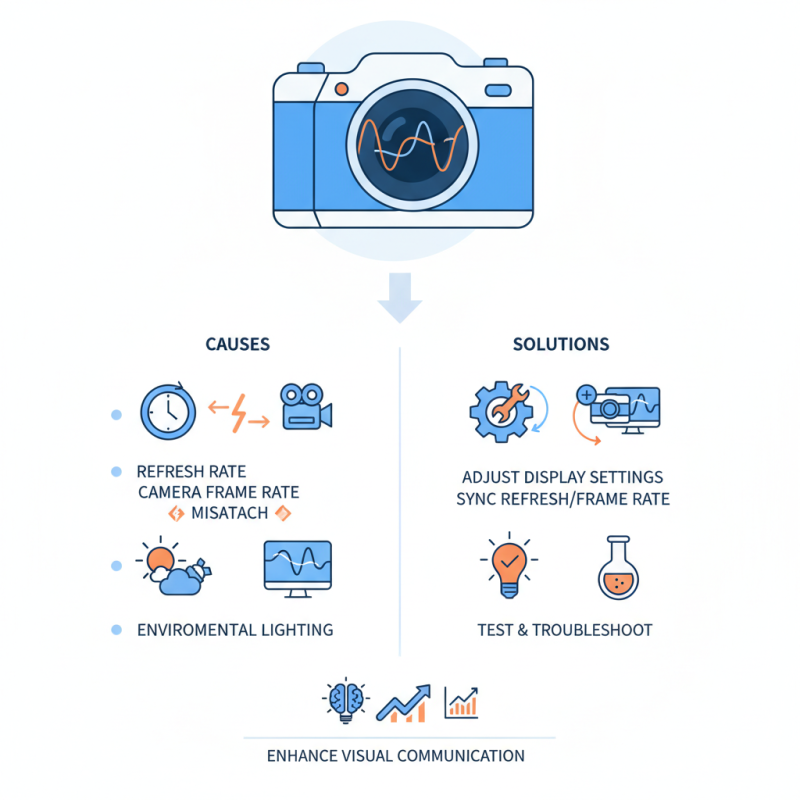
LED displays are becoming increasingly common in various settings, from concerts to corporate events. However, flickering issues on camera can be significant obstacles for videographers. Studies reveal that nearly 30% of professionals encounter this problem. The flicker occurs due to the interaction between the LED refresh rate and the camera shutter speed. When these two do not synchronize properly, undesired flickering effects appear.
Understanding the technical nuances is essential. Most LED displays operate on a fixed refresh rate, commonly 60 Hz. Many cameras may have shutter speeds ranging from 1/30 to 1/1000 seconds. When filming, if the shutter speed does not align with the display's refresh rate, flicker is likely. A report by the International Television Engineering Society states that mismatch can cause serious disruptions, leading to decreased production quality.
It’s crucial to experiment with different settings. Adjusting the shutter speed can reduce flicker, but the process may require patience. Also, ensuring proper lighting conditions helps minimize this issue. Some professionals advise using specialized filters or settings to mitigate flickering. However, not all solutions work seamlessly across various environments. Continually testing and refining techniques is necessary to achieve optimal results.
Flickering in LED displays can be frustrating, especially when captured on camera. Several factors contribute to this issue, and understanding them is key to finding solutions.
One common cause of flickering is the refresh rate mismatch. When the display's refresh rate doesn’t sync with your camera's frame rate, flickers occur. This happens frequently during video recordings. Adjusting the settings on your camera may help resolve the issue.
Another cause can be the power supply inconsistency. LED displays require a stable power source. Fluctuating voltage levels can trigger flickering effects. It’s worth checking if your power source is stable and reliable. Additionally, ambient lighting conditions can affect how the display appears on camera. Bright surroundings may exacerbate this issue, leading to unwanted flicker.
| Cause of Flickering | Description | Solution |
|---|---|---|
| Refresh Rate Mismatch | The refresh rate of the LED display does not match the frame rate of the camera, causing flickering. | Adjust the camera settings to match the LED display's refresh rate. |
| Insufficient Power Supply | An unstable or insufficient power supply can lead to flickering. | Ensure the power supply is adequate and stable for the LED display. |
| Temperature Fluctuations | Extreme heat or cold can affect the performance of the LED components. | Regulate the operating temperature of the environment. |
| Cable Issues | Damaged or loose cables can cause signal loss, resulting in flickering. | Check and replace damaged cables, ensuring secure connections. |
| Software Problems | Outdated or incompatible software can cause display issues. | Update the software and ensure compatibility with the LED display. |
When capturing LED displays on camera, flickering can become a significant challenge. A major factor influencing flicker is the camera settings you choose. Frame rate, shutter speed, and ISO sensitivity all play pivotal roles in how the display appears through the lens. For instance, a mismatch between the camera’s frame rate and the LED's refresh rate can lead to noticeable flicker. Research indicates that matching the frame rate to the flicker frequency of the LED can drastically reduce these issues.
Adjusting shutter speed is equally crucial. A common misstep is using a shutter speed that is too fast relative to the LED refresh rate. Many professionals recommend setting the shutter speed to match or be a multiple of the refresh rate, usually between 50Hz and 60Hz for most LED displays. For instance, setting the shutter speed to 1/50 or 1/60 sec can provide a stable image. However, relying solely on configuration might cause unintended exposure issues, leading to undesirable results in varying lighting conditions.
ISO settings can amplify these effects. Higher ISO settings may introduce digital noise, impacting overall image quality. Balancing ISO with the right aperture can help in achieving better results. Some photographers might find themselves struggling with this balance, as overly aggressive ISO settings can create distraction rather than clarity. Ultimately, understanding how these camera settings interact with LED technology is essential. It empowers creators to take more informed steps to mitigate flickering, producing cleaner and more stable visuals.
LED displays are popular in many settings, but flickering can be a common issue, especially when captured on camera. To minimize this flickering, paying attention to your video settings is crucial. Adjusting the frame rate of your camera to match the refresh rate of the display can significantly reduce flicker. Most LED displays operate at a frequency of 60Hz; therefore, setting your camera frame rate to 30 or 60 fps can create smoother visuals.
Lighting also plays a key role in reducing flicker. Use consistent and suitable lighting that doesn’t interfere with the display. Poor lighting conditions can amplify flickering effects when filmed. Experimenting with different positions and intensities can help. Additionally, ensure that your video capture equipment is of good quality. Low-quality cameras may struggle with flicker reduction, leading to updates or replacements being necessary.
For those seeking a more permanent solution, consider a flicker-free LED display. While this may require a larger investment, the benefits of clear visuals can outweigh the costs. However, remember that not all displays are created equal; some may still flicker under certain conditions. It's essential to stay informed about technology changes in LED displays and maintain a balance between cost and quality.
When working with LED displays, flickering can be a frustrating issue on set. This problem often stems from the differences in refresh rates between the display and the camera. To troubleshoot this, one can start by matching the camera's frame rate with the LED display's settings. Try adjusting the shutter speed, as well. A slower shutter speed may reduce flicker but can compromise image sharpness.
Another common cause of flickering is the ambient lighting conditions. If your set has fluorescent lights, consider turning them off or using diffused lighting. This can significantly improve the overall image quality. If flickering persists, a test shoot in varying conditions is advisable. This helps identify the specific factors causing issues.
Remember, not every solution will work for every setup. Sometimes, experimentation is key. Each set is unique, and issues may vary in their complexity.
: Key factors include frame rate, shutter speed, and ISO sensitivity. They greatly affect how the display appears on camera.
Adjust the camera's frame rate to align with the LED display's refresh rate. Most displays operate at 60Hz.
Set the shutter speed to 1/50 or 1/60 second. This often provides a stable image and reduces flicker.
Higher ISO can introduce noise and affect image quality. Balance it with aperture settings for better results.
Use consistent lighting that doesn't interfere with the display. Diffused lighting can help eliminate flicker effects.
Start by matching the camera frame rate with the LED's settings. Test different shutter speeds to find the best option.
Conduct a test shoot under varying conditions. This can help identify specific causes of flickering in your setup.
Consider investing in flicker-free LED displays. However, not all displays guarantee zero flicker under all conditions.
Technology changes rapidly. Staying informed helps maintain a balance between cost and quality in display options.
Yes, using a shutter speed too fast can lead to exposure issues and reduced image clarity in different lighting conditions.
LED display flickering on camera can be a frustrating issue for videographers and content creators. Understanding the causes behind this phenomenon is essential to address the question: "Why is my LED display flickering on camera?" Common culprits include mismatched refresh rates between the camera and the LED display, variations in lighting conditions, and interference from electrical sources. Adjusting camera settings, such as shutter speed and frame rate, can significantly impact flickering levels.
To minimize LED display flickering, practitioners should explore solutions like synchronizing the refresh rates and using flicker-free settings on cameras. Testing and troubleshooting flicker issues on set involve checking various factors, including power supplies and environmental conditions. By following these guidelines, filmmakers can effectively reduce flicker and ensure a smoother visual experience.
Sync LED